Showing posts with label retrieve photos from iphone. Show all posts

Monday, 22 May 2017

How to Recover iPhone Photos After Deletion, Update or Factory Reset?


As the saying goes, "What's done is done!" This is right for most cases but it's not the absolute situation. This can be well proven in the case of data recovery. Even though you lose data on your iOS device, you still have the chance to get them back. You might know how to recover iPhone photos from iTunes backup or iCloud backup. And that's the most common used way for iOS users.


Now let's talk about how your photos or other data could be lost, or to be more concisely, when you will need to retrieve photos from iPhone. The most harrowing cause is wrong operation or mistaken deletion, which makes you extremely regretful. And you could lose photos because of phone stealing, device damage, update failure, jailbreak failure, factory reset, virus infection, malware attack and so on.

how to recover iPhone photos

No matter how you lose the data on your iPhone, with the advanced technologies nowadays, you can have a variety of solutions to get them back. Let's see how to recover iPhone photos via several effective ways below.

When you have backup

If you are a good listener to Apple, you should have been backing up your iPhone. And with the backup, you can easily restore your iPhone. For iOS users, there are two common used ways: iTunes and iCloud.

Restore from iTunes backup

1. Connect your iPhone with the computer via USB cable and then open iTunes on your computer.

2. Click on your device in iTunes, which appears in the upper-left corner.

3. Right-click on your device and press "Restore from backup…"

4. Choose the latest backup from the list and confirm to proceed the restore.


Restore from iCloud backup


1. On your iPhone, go to Settings > General > Software Update. If a newer version of iOS is available, follow the onscreen instructions to download and install it.

2. Make sure you have a recent backup to restore from. Go to Settings > iCloud > Storage > Manage Storage, then tap a device listed under Backups to see the date and size of its latest backup.

3. Go to Settings > General > Reset, then tap "Erase all content and settings".

4. From the apps Apps & Data screen, tap Restore from iCloud Backup, then sign in to iCloud.

5. Proceed to "Choose backup", then choose from a list of available backups in iCloud.


When you don't have backup

If you don't have backup on iTunes, iCloud, other cloud-based platforms or other devices, the only solution for you is using an iPhone photo recovery app. Here I would recommend you iOS Data Recovery which is able to help you recover photos, videos, music files, contacts, messages, apps, Safari bookmarks and so on, with or without backup. Below is the tutorials on how to recover iPhone photos without backup by using iOS Data Recovery.

1. Download and install iOS Data Recovery on your computer, launch the app.

2. Connect iPhone with the computer via USB cable.

3. Select recovery mode: Recover from iOS Device.

4. Select, preview and recover deleted photos on iPhone.


Tuesday, 16 May 2017

How to recover iPhone photos when you do not have backup?


Being one of the top brands and best smartphones in the market, iPhone has gained its popularity among the mobile users. And because of its amazing and powerful camera feature, iPhone is winning more and more loyal users. With people are tending to take photos using iPhone, there is no wonder it is so welcome. And I think you are of no exception. You take photos wherever you go, on the way of journey, attending parties, sharing delicacy, etc. The photos become your precious memories. What if you lose them? How to recover iPhone photos?


Yes, just like most of the iOS users, you would not hesitate to turn to iTunes or iCloud. But the problem is did you make backup of your photos or your iPhone? If not, what can you do to restore deleted iPhone photos?


Don’t be panic! There is a way that can help you retrieve photos from iPhone without backup. With the help of an app such as iOS Data Recovery, this is absolutely possible. You can recover photos, videos, songs, contacts, messages, notes, calendars and so on. And this software is compatible with not only iPhone, but also iPad and iPod Touch.


Now, follow me below on how to recover iPhone photos:


1. Connect iPhone to PC

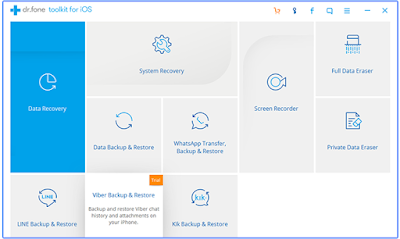
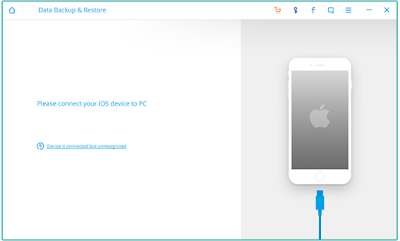
After you download and install iOS Data Recovery, start the app and click "Data Recovery". Now connect your iPhone to the computer via USB cable. You will then see the user interface as below screenshot shows.

how to recover iPhone photos

2. Choose “Recover from iOS Device”

In this step, you are supposed to choose "Recover from iOS Device" then the program will start scanning your iPhone.


3. Recover Photos from iPhone

After iOS Data Recovery finishes scanning your iPhone, you can see below interface with results listed. You will find the deleted photos in red. You can click on the photo and preview it. Once you select them and click "Recover", the program will begin the recovery process.

how to recover iPhone photos without backup


That's all for how to recover iPhone photos. The whole process will take only a few minutes. And once it is done, exit the program and you can find your photos on your iPhone again.

Friday, 5 May 2017

Easy Way to Retrieve Photos from iPhone

What will you do if you delete photos on your iPhone by mistake? I just went through such an unpleasant experience. And I spent quite a lot of time to make up my terrible mistake. And thank God I eventually got the solution and managed to retrieve photos from iPhone. I think I am not the only victim of losing data because of wrong hand. And I could sense the soreness in searching solutions to restore deleted photographs from iPhone.


To avoid this tragedy, the best way is to back up your iPhone regularly. Otherwise, you will be regretful. If you don't have backup of what you've lost, don't be panic, you still have the chance of getting them back by using a photo recovery app. That's how I solved the problem when I deleted my photos last time. To be honest, that really worked out for me and it was simple. Below I will show you how to use iOS Data Recovery to retrieve photos from iPhone.


Before getting started, I would like make a brief introduction of this iOS photo recovery software. For one thing, this software lets you to retrieve deleted  photos from any iPhone and iPad: iPhone 7/7 Plus/SE/6S/6S Plus/6/6 Plus/5S/5C/5/4S/4/3GS, iPad Pro, iPad Air 2/1, iPad mini 4/3/2/1, etc. For another, apart from photos, this program also enables you to recover other data such videos, audio files, contacts, messages and calendar.

1: Run iOS Data Recovery

When you download the iOS Data Recovery, you can set it up on your desktop computer and run it immediately. And in the user interface, choose "Data Recovery" before you move to next step.

retrieve photos from iphone


2: Plug iPhone to PC

In this step, you are supposed to plug your iPhone to the computer via USB cable. And once the iPhone is connected with the computer, the iPhone photo recovery software will detect your iPhone.

retrieve photos from iphone - connect iphone to pc


3: Choose Recovery Mode

This iOS data recovery software allows you to recover deleted photos from iOS device, iTuens backup and iCloud backup. Now you should click to choose “Recover from iOS Device” and the program will start to scan through your iPhone to locate the deleted photos.

retrieve photos from iphone - choose recovery source


4: Retrieve Deleted Photos

Once iOS Data Recovery finishes scanning your iPhone, it will display all the data on your iPhone, including the deleted photos. Now you can select the deleted photos and click "Recover" to let the program to retrieve photos from iPhone.

retrieve photos from iphone - recover deleted photos