Showing posts with label iphone photo recovery software. Show all posts

Friday, 5 May 2017

Easy Way to Retrieve Photos from iPhone

What will you do if you delete photos on your iPhone by mistake? I just went through such an unpleasant experience. And I spent quite a lot of time to make up my terrible mistake. And thank God I eventually got the solution and managed to retrieve photos from iPhone. I think I am not the only victim of losing data because of wrong hand. And I could sense the soreness in searching solutions to restore deleted photographs from iPhone.


To avoid this tragedy, the best way is to back up your iPhone regularly. Otherwise, you will be regretful. If you don't have backup of what you've lost, don't be panic, you still have the chance of getting them back by using a photo recovery app. That's how I solved the problem when I deleted my photos last time. To be honest, that really worked out for me and it was simple. Below I will show you how to use iOS Data Recovery to retrieve photos from iPhone.


Before getting started, I would like make a brief introduction of this iOS photo recovery software. For one thing, this software lets you to retrieve deleted  photos from any iPhone and iPad: iPhone 7/7 Plus/SE/6S/6S Plus/6/6 Plus/5S/5C/5/4S/4/3GS, iPad Pro, iPad Air 2/1, iPad mini 4/3/2/1, etc. For another, apart from photos, this program also enables you to recover other data such videos, audio files, contacts, messages and calendar.

1: Run iOS Data Recovery

When you download the iOS Data Recovery, you can set it up on your desktop computer and run it immediately. And in the user interface, choose "Data Recovery" before you move to next step.
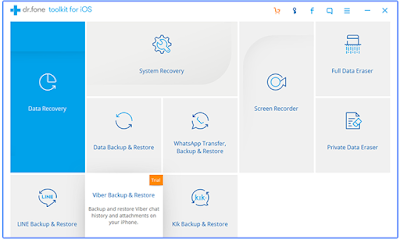
retrieve photos from iphone


2: Plug iPhone to PC

In this step, you are supposed to plug your iPhone to the computer via USB cable. And once the iPhone is connected with the computer, the iPhone photo recovery software will detect your iPhone.
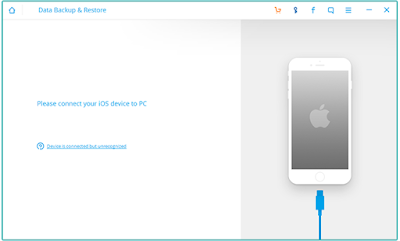
retrieve photos from iphone - connect iphone to pc


3: Choose Recovery Mode

This iOS data recovery software allows you to recover deleted photos from iOS device, iTuens backup and iCloud backup. Now you should click to choose “Recover from iOS Device” and the program will start to scan through your iPhone to locate the deleted photos.

retrieve photos from iphone - choose recovery source


4: Retrieve Deleted Photos

Once iOS Data Recovery finishes scanning your iPhone, it will display all the data on your iPhone, including the deleted photos. Now you can select the deleted photos and click "Recover" to let the program to retrieve photos from iPhone.

retrieve photos from iphone - recover deleted photos


Thursday, 27 April 2017

How Can I Retrieve Deleted Photos from iPhone without Backup?

Last weekend one of my friends asked me if there is any way to retrieve deleted photos from iPhone. He then told me that he was running out of space and then decided to delete some files unneeded. There were so many photos on the phone that he mistakenly deleted some photos that were important to him. It was too late when he realized that because he had no backup. I could see his anxiety through his eyes and expression. When I told him that there was a solution, he was not so convinced. But he turned out to be excited after I helped him regain the deleted photos.

To be honest, I also did not believe at first that it could be possible when I had the same problem. But after a painful time in searching for solution, I was directed to a page where I finally had my problem solved. I downloaded and installed the iPhone photo recovery software called iOS Data Recovery, and there came the miracle. This program is really amazing and it allows users to recover a variety of data types including photos, videos, songs, contacts, messages and calendar. And the whole process is rather simple, which requires just a few steps. You can follow below after you download and install the program on your computer.


4 steps to retrieve deleted photos from iPhone


Step 1: Launch iOS Data Recovery

After you install iOS Data Recovery on your computer, you can launch this iPhone photo recovery software. When you enter into the user interface, click to select “Data Recovery”.

retrieve deleted photos from iphone - start app


Step 2: Connect iPhone & PC

When you enter the data recovery mode, you are supposed to connect your iPhone with your computer via USB. And once they are connected, iOS Data Recovery will detect your iPhone.

retrieve deleted photos from iphone - connect iPhone to PC


Step 3: Choose Recovery Mode

In this step, you will need to choose a recovery mode. iOS Data Recovery offers you 3 modes: recover data from iOS device, iTunes backup and iCloud backup. If you don’t have backup, you just need to choose "Recover from iOS Device" and then start the scanning process.

retrieve deleted photos from iphone - choose recovery mode


Step 4: Recover Deleted Photos

As soon as the scanning process finishes, you can see the scanning results where the deleted photos are listed. In the meanwhile, you can preview the photos before you start the recovery process. After you select photos you want to recover, you just need to click "Recover" and iOS Data Recovery will start to retrieve deleted photos from iPhone.

retrieve deleted photos from iphone